
Image to Video AI Generator
Bring a still photo to life. Upload an image as the first frame, describe the motion, and get a smooth AI video.
- Resolution
- 480p–1080p
- Duration
- 5–15 seconds
- Aspect ratio
- Matches your image
- Sound
- Native audio
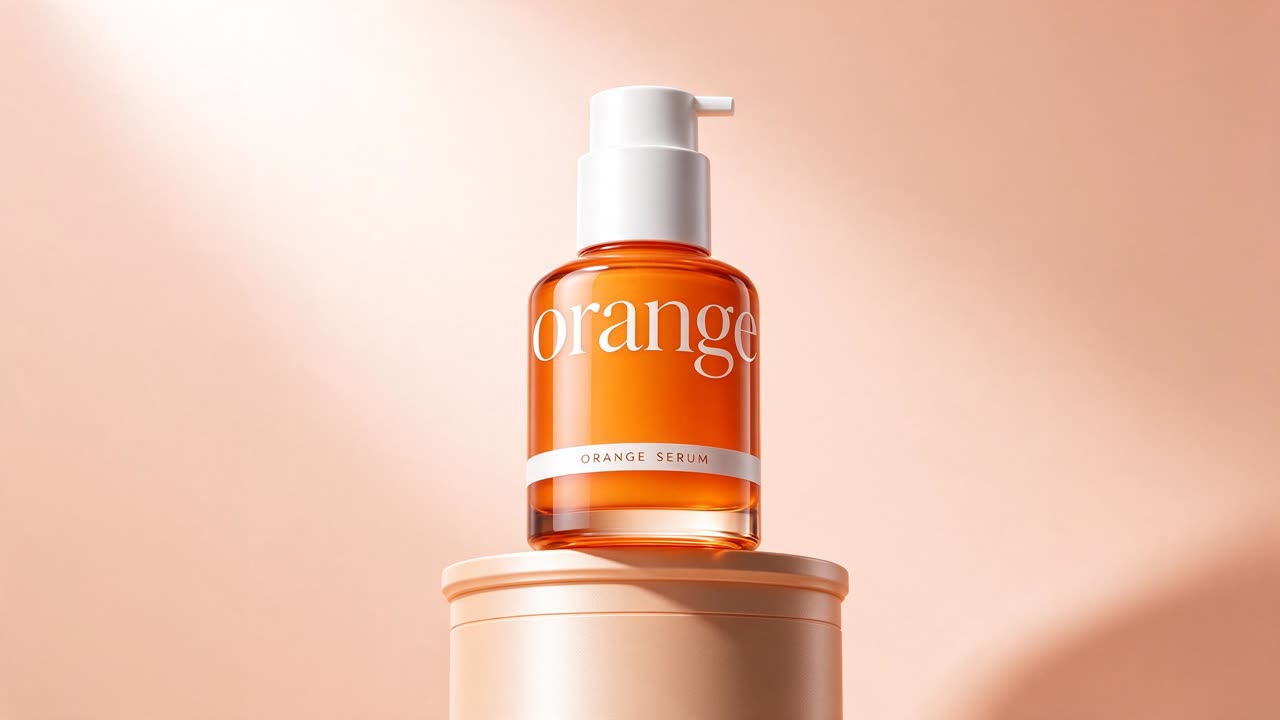
The camera slowly orbits the serum bottle, soft light glides across the glass, gentle highlights move over the pedestal, premium product commercial
Seedance 2.0 Mini
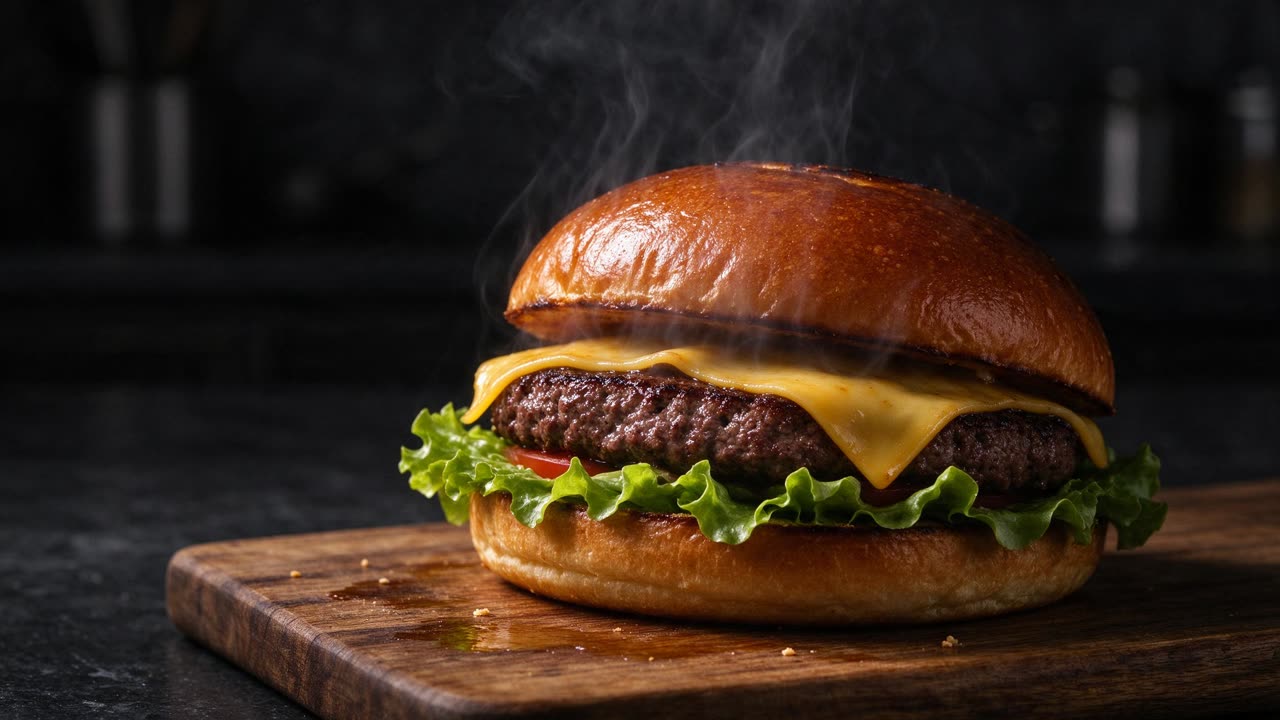
Steam rises from the burger, melted cheese slowly drips down the side, the camera pushes in gently, dark moody food commercial
Seedance 2.0 Mini
Animate any image with AI
Image to video starts from a picture you provide instead of a blank canvas. The AI keeps your image as the opening frame and adds natural motion: people move, water flows, the camera glides through the scene.
Add a last frame to control where the shot ends. Seedance fills in the motion between the two images, which works well for transitions, before-and-after shots and product reveals.
The video follows the shape of your image, so upload a vertical photo for a vertical video and a wide one for widescreen.
Why animate photos with Dola AI Video
Your image stays the hero
The first frame is your photo, so products, faces and brand details stay recognizable.
First and last frames
Set both ends of the shot and let the AI create the motion in between.
Natural motion
Seedance adds believable movement and camera work instead of a simple zoom.
Works with AI images
Create a still with Seedream, then animate it here.
Optional sound
Generate matching audio with the video, or keep it silent.
Specs and credits
Credits depend on the options you pick. The exact amount is shown on the button before you generate.
| Model | Input modes | Resolution | Duration | Sound |
|---|---|---|---|---|
| Seedance 2.5 | Text · Frames · Reference | 480p · 28 credits/s720p · 63 credits/s1080p · 158 credits/s | 5–15 seconds | Native audio, can be turned off |
| Seedance 2.0 | Text · Frames · Reference | 480p · 19 credits/s720p · 41 credits/s1080p · 102 credits/s | 5–15 seconds | Native audio, can be turned off |
| Seedance 2.0 Fast | Text · Frames · Reference | 480p · 11.7 credits/s720p · 24.8 credits/s | 5–15 seconds | Native audio, can be turned off |
| Seedance 2.0 Mini | Text · Frames · Reference | 480p · 3.8 credits/s720p · 8.2 credits/s | 5–15 seconds | Native audio, can be turned off |
Seedance 2.5
- Input modes
- Text · Frames · Reference
- Resolution
- 480p · 28 credits/s720p · 63 credits/s1080p · 158 credits/s
- Duration
- 5–15 seconds
- Sound
- Native audio, can be turned off
Seedance 2.0
- Input modes
- Text · Frames · Reference
- Resolution
- 480p · 19 credits/s720p · 41 credits/s1080p · 102 credits/s
- Duration
- 5–15 seconds
- Sound
- Native audio, can be turned off
Seedance 2.0 Fast
- Input modes
- Text · Frames · Reference
- Resolution
- 480p · 11.7 credits/s720p · 24.8 credits/s
- Duration
- 5–15 seconds
- Sound
- Native audio, can be turned off
Seedance 2.0 Mini
- Input modes
- Text · Frames · Reference
- Resolution
- 480p · 3.8 credits/s720p · 8.2 credits/s
- Duration
- 5–15 seconds
- Sound
- Native audio, can be turned off
Seedance and Seedream are AI models developed by ByteDance. Dola AI Video is an independent platform that gives you access to them and is not affiliated with ByteDance.
How to turn an image into a video
- 1
Upload your photo
Frames is already selected above. Upload your image as the first frame, and a last frame if you want one.
- 2
Describe the motion
Say what should move and how the camera behaves, for example 'slow push-in, hair moving in the wind'.
- 3
Generate and download
Choose a model and length, generate, and download the video without a watermark.
Popular image to video ideas
Product photo to video ad
Turn a packshot into a short clip with light, motion and atmosphere.
Living portraits
Add subtle movement to portraits you have the rights to use.
Places and spaces
Turn still photos of travel spots, rooms and buildings into gentle camera moves.
Artwork and illustrations
Animate drawings, paintings and AI art for social posts.
Frequently asked questions
What kind of images work best?
Sharp, well-lit images with a clear subject. Avoid images with a lot of small text. The video keeps the shape of your image.
Do I need a last frame?
No, it is optional. Without it, the AI decides how the shot ends. Add one when you need the video to finish on a specific image.
Which model should I use for image to video?
Seedance 2.5 gives the best quality. Seedance 2.0 Mini is the cheapest way to see how a photo animates before you render the final version.
Can I animate a photo of a person?
Yes, if you have the right to use the photo. Do not upload images of other people without their consent. See our Terms of Service for the rules.
What happens to the image I upload?
Uploaded images are kept only for a limited time and then deleted automatically. The video you generate stays in My Creations.
Is there a watermark on the video?
No. We do not add a watermark, and you can use the video in commercial projects, subject to our Terms of Service and the terms of the model provider.
Explore more
Pay only for what you create
Credits never expire. Choose a monthly plan or a one-time credit pack.